
Exclude
Exclude posts with selected facet choice(s) from the listing
This add-on adds a facet type that excludes posts with selected facet choice(s) from the listing. An example would be a recipe listing with a facet to exclude recipes with certain ingredients, like gluten, salt, or sugar.
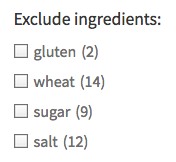
The Exclude facet can be used in two “states”:
- Positive: the facet displays default “positive” choices and counts, e.g. “gluten (2)”, representing 2 recipes with gluten in the listing. In this state, the facet would need an explanatory facet heading, e.g. “Exclude these ingredients:”. In the positive state, the “Reverse counts” setting needs to be disabled.
-
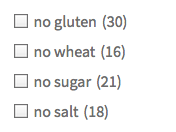
A “negative” Exclude facet with Checkboxes UI type, with a “no ” prefix and reverse counts. Negative: the facet displays “negative” choices and counts, e.g. “no gluten (30)”, or “
gluten-free (30) “, representing 30 recipes without gluten in the listing. In this state, the choices are self-explanatory and the facet would not require an explanatory heading. In the negative state, the “Reverse counts” setting needs to be enabled, and a prefix (likeno) or suffix (like-free) is needed to reverse the meaning of the choice labels.
The facet can be displayed in several UI types like checkboxes, radio buttons, a dropdown, or as an fSelect facet type.
Available options
| Name | Description |
|---|---|
| Data source | Where the values live (taxonomy, custom field, post attribute). When choosing a hierarchical taxonomy, read this warning. | UI type | The UI type of this facet:
If you select the Checkboxes UI type, you can also apply all customizations described on the Checkboxes facet page, like automatically expand checked hierarchical checkboxes, hide the expand- and collapse buttons, customize the expand- and collapse buttons, or toggle hierarchical checkbox levels in accordion style. If you select the fSelect UI type, you can also apply all customizations described on the fSelect facet page, like setting a custom fixed label, changing the search box text, changing the “No results found” text, and hiding the search box. |
| Parent term | This setting is only visible if the facet’s selected Data Source is a taxonomy. If this is a hierarchical taxonomy and you want to display only child terms of a specific parent term, enter the parent’s term ID (the number only). Enter only one term ID.
Note: in a multilingual setup, setting a parent term will not work, because the parent term IDs will be different for each language. To fix this, you need to use separate facets for each language, or index the parent terms for all languages. |
| Value modifiers | Enter a list of facet values (one per line, without commas) to include or exclude. The values need to match the label (not the slug) of the facet choice exactly, including spaces and capitalization.
In hierarchical facets, if you use “Show only these values”, if you want only specific child terms to show up, you need to include their parent terms (on all levels) too. Or you need to set their parent term ID in the “Parent term” setting. If you use “Exclude these values”, you can directly exclude child terms, without excluding their parent terms. For an example, see the explanation below. If your value modifiers don’t work, see this page for more info. |
| Hierarchical | This setting is only visible for UI types “Checkboxes”, “Dropdown” and “fSelect”. If enabled, the facet choices are displayed as a hierarchy, by ordering the child terms below their parent term, indenting the child terms, and by showing [+] / [-] icons to toggle the child levels. This setting only appears if Data Source is set to a taxonomy, and it will only have an effect if the chosen taxonomy is actually a hierarchical taxonomy. Notes:
|
| Show expanded | This option only appears if the Hierarchical setting is enabled. By default, all child levels will be in the collapsed state and can be expanded with the [+] icons. With this setting enabled, child levels will be expanded all the time. If you want to hide the expand/collapse icons in this case, see the solution below. |
| Show ghosts | Show choices that would return zero results? See the explanation below. |
| Preserve ghost order | This option only appears if the Show ghosts setting is enabled. By default, ghost choices will appear at the bottom. With this setting enabled, ghost choices are kept in the same order (mixed with valid choices).
This setting is not available when the “Sort by” setting is set to “Highest count”, in which case the ghost order is ignored. |
| Default label | This setting is only visible for UI types “Radio”, “Dropdown”, and “fSelect”. It sets the text of the “Any” choice:
Note: this label is translatable with the facetwp_i18n hook. |
| Multi-select | This setting is only visible for UI type “fSelect”. If enabled, the facet will accept multiple selections and will display a checkbox-style UI. |
| Sort by | Sort facet choices by:
To customize the sort order, for example switch the ASC/DESC order, or to sort numerically, you can use the facetwp_facet_orderby hook. |
| Count | The maximum number of choices to display. Default: 10. Be aware that if your Data source is a hierarchical taxonomy, the count includes the child terms/categories. If the count is too low, (some) child options will not show up.
If you leave this field empty, the default of |
| Soft limit | The number of choices before showing a “See {num} more” / “See less” link. link. Set to -1 to display all options. The “Soft limit” option is not available in combination with the “Hierarchical” setting. Note: this label is translatable with the facetwp_i18n hook, with __(), or with the gettext filter.
|
Reverse counts | If enabled, the facet choice counts represent the number or posts without that choice. When using this setting, it’s recommended to use a prefix or suffix to create negative choice labels. For example, “no gluten” or “gluten-free”. |
| Prefix | Text that appears before each facet choice label. For example, “no ” (including the space) to let the facet choice “gluten” show up as “no gluten”. It’s recommended to use reverse counts when using negative choice labels. Note: the prefix text can be translated with the facetwp_i18n hook.
Note: this field accepts HTML, so you could wrap the prefix text in a |
| Suffix | Text that appears after each facet choice label. For example “-free” to let the facet choice “gluten” show up as “gluten-free”. It’s recommended to use reverse counts when using negative choice labels. Note: the suffix text can be translated with the facetwp_i18n hook.
Note: this field accepts HTML, so you could wrap the suffix text in a |
What are value modifiers?
Value modifiers let you include or exclude certain choices from displaying. This setting requires a re-index to take effect.
Below are some examples:
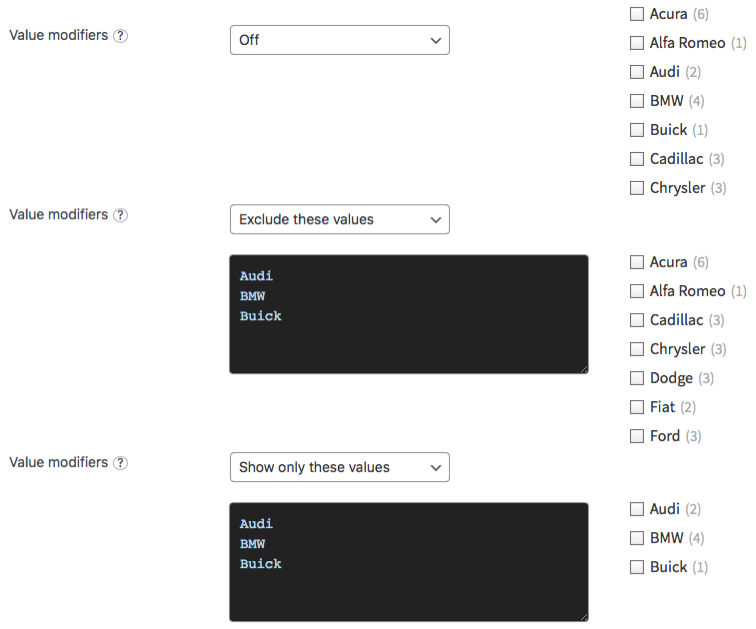
In hierarchical facets, if you use “Show only these values”, if you want only specific child terms to show up, you need to include their parent terms (on all levels) too. Or you need to set their parent term ID in the “Parent term” setting. If you use “Exclude these values”, you can directly exclude child terms, without excluding their parent terms.
What are ghosts?
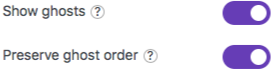 Ghosts are facet choices that do appear in the unfiltered results, but disappear after being filtered out. If a facet choice has no associated posts, then it will never appear.
When “Show ghosts” is enabled, after filtering, facet choices that would return zero results are still shown, but dimmed and not clickable.
By default, the ghosts will appear at the bottom of the list of choices. If you enable “Preserve ghost order“, the ghost choices will be shown in the original order (mixed with the other, valid choices), determined by the “Sort by” setting.
Hide counts
How to hide the counts for the Excludefacet, depends on the UI type setting:
UI type set to “Checkboxes” or “Radio”
Add the following CSS into your theme’s style.css. Be aware that this also hides the counts for all facets of type Checkboxes, Radio, Hierarchy, Range List, and Time Since (with UI type set to “Radio).
How to use custom CSS?
CSS code can be placed in your (child) theme's style.css file. Alternatively, you can add it manually between
<style>tags in the<head>section, in your (child) theme's header.php file. You can also load it with a hook in your (child) theme's functions.php file, or in the Custom Hooks add-on. To load the code only on pages with facets, use thefacetwp_scriptshook. To load it on all pages, usewp_headorwp_footer. Or you can use a code snippets plugin. More info.facetwp-counter { display: none; }
If you need to be specific about which (type of) facet to hide the counts for, use any of the following styles:
How to use custom CSS?
CSS code can be placed in your (child) theme's style.css file. Alternatively, you can add it manually between
<style>tags in the<head>section, in your (child) theme's header.php file. You can also load it with a hook in your (child) theme's functions.php file, or in the Custom Hooks add-on. To load the code only on pages with facets, use thefacetwp_scriptshook. To load it on all pages, usewp_headorwp_footer. Or you can use a code snippets plugin. More info/* Hide counts in all facets with a checkboxes UI (Checkboxes facets, and Range List and Exclude facets with UI type "Checkboxes" */ .facetwp-checkbox .facetwp-counter { display: none; } /* Hide counts in all facets with a radio UI (Radio facets, and Range List, Time Since, and Exclude facets with UI type "Radio") */ .facetwp-radio .facetwp-counter { display: none; } /* Hide counts in all Exclude facets with UI type "Checkboxes" or "Radio" */ [data-type="exclude"] .facetwp-counter { display: none; } /* Hide counts in a specific Exclude facet with UI type "Checkboxes" or "Radio" */ .facetwp-facet-yourfacetname .facetwp-counter { display: none; }
Remove counts
With the UI type set to “Checkboxes” or “Radio”, instead of hiding the counts, it’s also possible to remove them entirely from the facet’s HTML. Add the following code to your (child) theme’s functions.php to do this for a specific facet:
How to use custom PHP code?
PHP code can be added to your (child) theme's functions.php file. Alternatively, you can use the Custom Hooks add-on, or a code snippets plugin. More info
add_filter( 'facetwp_facet_html', function( $output, $params ) { if ( 'my_facet_name' == $params['facet']['name'] ) { // Replace 'my_facet_name' with the name of your facet $output = preg_replace( '/<span class="facetwp-counter">[^<]*<\/span>/', '', $output ); } return $output; }, 10, 2 );
Or you can select by facet type. Note that this will only work for the following facet types: Exclude and Range List (with UI type set to “Checkboxes” or “Radio”), Checkboxes, Radio, Hierarchy, and Time Since (with UI type set to “Radio”):
How to use custom PHP code?
PHP code can be added to your (child) theme's functions.php file. Alternatively, you can use the Custom Hooks add-on, or a code snippets plugin. More info
add_filter( 'facetwp_facet_html', function( $output, $params ) { if ( 'exclude' == $params['facet']['type'] ) { // Works for: 'checkboxes', 'radio', 'hierarchy', 'range_list', 'time_since', 'exclude' $output = preg_replace( '/<span class="facetwp-counter">[^<]*<\/span>/', '', $output ); } return $output; }, 10, 2 );
UI type set to “Dropdown” or “fSelect”
To hide counts from all facets of a type that use a dropdown UI (Exclude, Range List, and Time Since facets with UI type set to “Dropdown” or “fSelect”, Dropdown facets, fSelect facets, and Hierarchy Select facets), add the following to your theme’s functions.php:
How to use custom PHP code?
PHP code can be added to your (child) theme's functions.php file. Alternatively, you can use the Custom Hooks add-on, or a code snippets plugin. More info
add_filter( 'facetwp_facet_dropdown_show_counts', '__return_false' );
If you want to hide counts from specific facets with a dropdown UI, then you can select by facet name:
How to use custom PHP code?
PHP code can be added to your (child) theme's functions.php file. Alternatively, you can use the Custom Hooks add-on, or a code snippets plugin. More info
add_filter( 'facetwp_facet_dropdown_show_counts', function( $return, $params ) { if ( 'my_facet_name' == $params['facet']['name'] ) { // Replace 'my_facet_name' with the name of your facet $return = false; } return $return; }, 10, 2 );
Or by facet type:
How to use custom PHP code?
PHP code can be added to your (child) theme's functions.php file. Alternatively, you can use the Custom Hooks add-on, or a code snippets plugin. More info
add_filter( 'facetwp_facet_dropdown_show_counts', function( $return, $params ) { if ( 'exclude' == $params['facet']['type'] ) { // Works for: 'dropdown', 'fselect', 'hierarchy_select', 'range_list', 'time_since', 'exclude' $return = false; } return $return; }, 10, 2 );
See also

Exclude
Exclude posts with selected facet choice(s) from the listing
Download this add-on from your account page:
Download Add-On