
A-Z Listing
Filter results by first letter
This add-on adds an A-Z Listing facet type, which displays a list of available first letters of the chosen Data Source field content.
Click on a letter to show results starting with that letter. Click the selected letter again, or the “Any” link, to reset the facet.

Available options
| Name | Description |
|---|---|
| Data source | The post attribute or custom field to be used for the first letter. |
| Default label | Change the default “Any” label. Note: this label is translatable with the facetwp_i18n hook. |
How character matching works
By default, the A-Z Listing facet will only show the capital letters A to Z in the standard Latin alphabet.
The first letter of each post is compared to these letters, after being stripped from any accent (or simplified) with WP’s built-in remove_accents() function, before being indexed. When clicking a letter in the facet, the letter is compared to the indexed first letter (without any accents). Upper- and lowercase letters will both match in this process. The result is that, for example, posts starting with n, N, ñ, or Ñ will all be indexed as starting with n/N, without accents, and will all match when clicking N in the facet. If in doubt, you can check for each character how/which accents are removed and how they are returned by this function. Note that it not only strips accents, but also simplifies some characters in other ways. For example æ becomes ae.
The # character in the facet is an alias for these numbers: 0,1,2,3,4,5,6,7,8,9. This means that any post that has a value that starts with one of these numbers will be in the results when clicking #. If needed, the # character can be removed or replaced with something else.
Customize the choices
Use other alphabets, languages, or characters
To replace characters in the facet, add new ones, delete specific ones, or replace the whole A to Z range, you can use the facetwp_alpha_chars hook, which was introduced in version 1.4 of the add-on.
The following example shows how to add 4 characters to the existing set: 👍, 👎, Æ and Ñ.
The code also contains a second hook in line 17: facetwp_alpha_remove_accents. The purpose of this hook is to remove the remove_accents() function that runs before indexing (as described above). The result is that posts starting with both ñ and Ñ are not stripped of their accents, are indexed as such, and will now match for Ñ, which is exactly what we want (and what also happens for all other non-accent lower/uppercase letters combinations).
The code needs to be added to your (child) theme’s functions.php. Replace my_az_facet_name in line 4 with the name of your A-Z Listing facet.
How to use custom PHP code?
PHP code can be added to your (child) theme's functions.php file. Alternatively, you can use the Custom Hooks add-on, or a code snippets plugin. More info
// IMPORTANT: Re-index after adding or changing below code! add_filter( 'facetwp_alpha_chars', function( $chars, $params ) { if ( 'my_az_facet_name' == $params['facet']['name'] ) { // Replace "my_az_facet_name" with the name of your A-Z Listing facet // Adds '👍','👎','Æ','Ñ' $chars = [ '#', '👍', '👎', 'Æ', 'A', 'B', 'C', 'D', 'E', 'F', 'G', 'H', 'I', 'J', 'K', 'L', 'M', 'N', 'Ñ', 'O', 'P', 'Q', 'R', 'S', 'T', 'U', 'V', 'W', 'X', 'Y', 'Z' ]; } return $chars; }, 10, 2 ); // Needed when adding characters, like Ñ and Æ. // Not needed when ONLY adding emojis, or when ONLY removing characters. add_filter( 'facetwp_alpha_remove_accents', '__return_false' );
Without the facetwp_alpha_remove_accents hook in line 17, WP’s remove_accents() function would cause posts starting with ñ and Ñ to be indexed as n/N, making them match for N in the facet. In this case, no posts starting with Ñ would be indexed, making Ñ appear as a ghost choice (dimmed) in the facet. If this sounds too complicated, just know that this extra hook is required for the desired behavior. But, if you are only adding emojis, the facetwp_alpha_remove_accents hook is not needed, and you can remove line 17.
Remove the hash character
The # character in the facet is an alias for these numbers: 0,1,2,3,4,5,6,7,8,9. This means that any post that has a value that starts with one of these numbers will be in the results when clicking #.
If you don’t have posts starting with numbers, or if you don’t want this character in the facet, you can remove it by adding the following code to your (child) theme’s functions.php. Make sure to replace my_az_facet_name in line 2 with the name of your A-Z Listing facet.
How to use custom PHP code?
PHP code can be added to your (child) theme's functions.php file. Alternatively, you can use the Custom Hooks add-on, or a code snippets plugin. More info
add_filter( 'facetwp_alpha_chars', function( $chars, $params ) { if ( 'my_az_facet_name' == $params['facet']['name'] ) { // Replace "my_az_facet_name" with the name of your A-Z Listing facet $chars = array_diff( $chars, ['#'] ); } return $chars; }, 10, 2 );
Add custom character aliases
In version 1.5+ of the A-Z Listing add-on, it is possible to add custom character aliases, using the facetwp_alpha_aliases hook.
A character “alias” is a facet choice that represents and matches multiple characters at once. The A-Z Listing facet already has a default alias: the # choice, which represents all numbers: 0,1,2,3,4,5,6,7,8,9.
The following example uses the facetwp_alpha_aliases hook to first define three custom aliases, for three ranges of letters in the alphabet.
Then it uses the facetwp_alpha_chars hook to define which choices (individual characters or aliases) to display in the facet. In this example, we chose to display only aliases: the three new ones, plus the default # one:
How to use custom PHP code?
PHP code can be added to your (child) theme's functions.php file. Alternatively, you can use the Custom Hooks add-on, or a code snippets plugin. More info
// Define custom character aliases. // Note: the 'facetwp_alpha_aliases' hook is available in A-Z Listing v1.5+. add_filter( 'facetwp_alpha_aliases', function( $aliases, $params ) { if ( 'my_az_facet_name' == $params['facet']['name'] ) { // Replace "my_az_facet_name" with the name of your A-Z Listing facet. $aliases['A-I'] = [ 'A', 'B', 'C', 'D', 'E', 'F', 'G', 'H', 'I']; $aliases['J-R'] = [ 'J', 'K', 'L', 'M', 'N', 'O', 'P', 'Q', 'R' ]; $aliases['S-Z'] = [ 'S', 'T', 'U', 'V', 'W', 'Z', 'Y', 'Z' ]; } return $aliases; }, 10, 2 ); // Display aliases as choice add_filter( 'facetwp_alpha_chars', function( $chars, $params ) { if ( 'my_az_facet_name' == $params['facet']['name'] ) { // Replace "my_az_facet_name" with the name of your A-Z Listing facet. $chars = [ '#', 'A-I', 'J-R', 'S-Z' ]; // Define which choices (individual characters or aliases) are available in the facet } return $chars; }, 10, 2 );

#) and three custom character aliases, matching 0-9 numbers and three A-Z character rangesNext, if needed, you could customize the label output for these four alias choices, as shown in the following snippet.
The facetwp_facet_display_value hook used for this will only change the text labels of the choices, as they appear in the facet. The technical raw choice values as they appear in the URL after filtering, will remain what they were as defined by the alias (e.g. ?_my_az_facet_name=A-I for A-I).
Note that the facetwp_facet_display_value hook also needs version 1.5+ of the A-Z Listing add-on, just like the facetwp_alpha_aliases used in the above snippet.
After adding the above and the following snippet to your (child) theme’s functions.php, the facet will look like the image on the right. Make sure to replacemy_az_facet_name with the name of your A-Z Listing facet in the three filters in both snippets.
How to use custom PHP code?
PHP code can be added to your (child) theme's functions.php file. Alternatively, you can use the Custom Hooks add-on, or a code snippets plugin. More info
// Note: the 'facetwp_facet_display_value' hook is available in A-Z Listing v1.5+. add_filter( 'facetwp_facet_display_value', function( $label, $params ) { if ( 'my_az_facet_name' == $params['facet']['name'] ) { // Replace "my_az_facet_name" with the name of your A-Z Listing facet. if ( '#' == $label ) { $label = '[0 to 9]'; } if ( 'A-I' == $label ) { $label = '[A to I]'; } if ( 'J-R' == $label ) { $label = '[J to R]'; } if ( 'S-Z' == $label ) { $label = '[S to Z]'; } } return $label; }, 20, 2 );
Customize the choice output
Customize the choice label text output
In version 1.5+ of the A-Z Listing facet add-on, you can use the facetwp_facet_display_value hook to customize the text label output of the characters and aliases, for example, to change the text label itself, or add a prefix/suffix or custom icon.
If needed, you can do this for specific characters only. For example, for the “Any” label, for the characters that are aliases, for those that are selected or not, or for those that have results or not.
See the code examples on the facetwp_facet_display_value hook page for how to do this.
Customize the hash alias character
In version 1.5+ of the A-Z Listing facet add-on, the # alias can easily be replaced with something else, using the facetwp_facet_display_value hook. Add the following snippet to your (child) theme’s functions.php to replace it with 0-9:
How to use custom PHP code?
PHP code can be added to your (child) theme's functions.php file. Alternatively, you can use the Custom Hooks add-on, or a code snippets plugin. More info
// Note: A-Z Listing add-on v1.5+ required add_filter( 'facetwp_facet_display_value', function( $label, $params ) { // Skip if the facet type is NOT an A-Z Listing facet if ( 'alpha' !== $params['facet']['type'] ) { return $label; } // Change the label if the choice is the '#' alias { if ( array_key_exists( $label, $params['aliases'] ) && $label == '#' ) { $label = '0-9'; } return $label; }, 20, 2 );
In older versions of the A-Z Listing facet add-on (v1.4 and earlier), you can change the # alias character using a few lines of CSS. Add the following snippet to your (child) theme’s functions.php to replace it with 0-9:
How to use custom PHP code?
PHP code can be added to your (child) theme's functions.php file. Alternatively, you can use the Custom Hooks add-on, or a code snippets plugin. More info
// Only works in A-Z Listing add-on v1.4 and earlier add_action( 'wp_head', function() { ?> <style> .facetwp-type-alpha .facetwp-alpha[data-id="#"] { visibility: hidden; } .facetwp-type-alpha .facetwp-alpha[data-id="#"]:after { content: "0-9"; /* Set the desired text */ visibility: visible; } </style> <?php }, 100 );
Note that in version 1.5++ of the A-Z Listing add-on, the .facetwp-alpha[data-id="#"] CSS selectors will not work anymore, because the data-id attribute was changed to data-value. In newer versions, you could change these CSS selectors, or restore the data-id attribute with the facetwp_facet_choice_attributes hook, or (recommended), use the above snippet instead.
Use lowercase letters
If you need the letters in the facet to show as lowercase, you can do so with a bit of CSS. Add the following to your (child) theme’s functions.php:
How to use custom PHP code?
PHP code can be added to your (child) theme's functions.php file. Alternatively, you can use the Custom Hooks add-on, or a code snippets plugin. More info
add_action( 'wp_head', function() { ?> <style> .facetwp-type-alpha .facetwp-alpha { text-transform: lowercase; } </style> <?php }, 100 );
Add custom classes or attributes to character choice elements
In version 1.5+ of the A-Z Listing facet add-on, you can add custom classes to the character choice elements using the facetwp_facet_choice_classes hook.
Similarly, custom attributes can be added using the facetwp_facet_choice_attributes hook.
In both hooks, you can do this conditionally, only for specific choices. For example, only for specific characters, if a specific character is in the results or not, if the character is selected or not, if it is the “Any” choice, or if the choice is a (built-in or custom) alias.
Insert A-Z letter headings in a listing
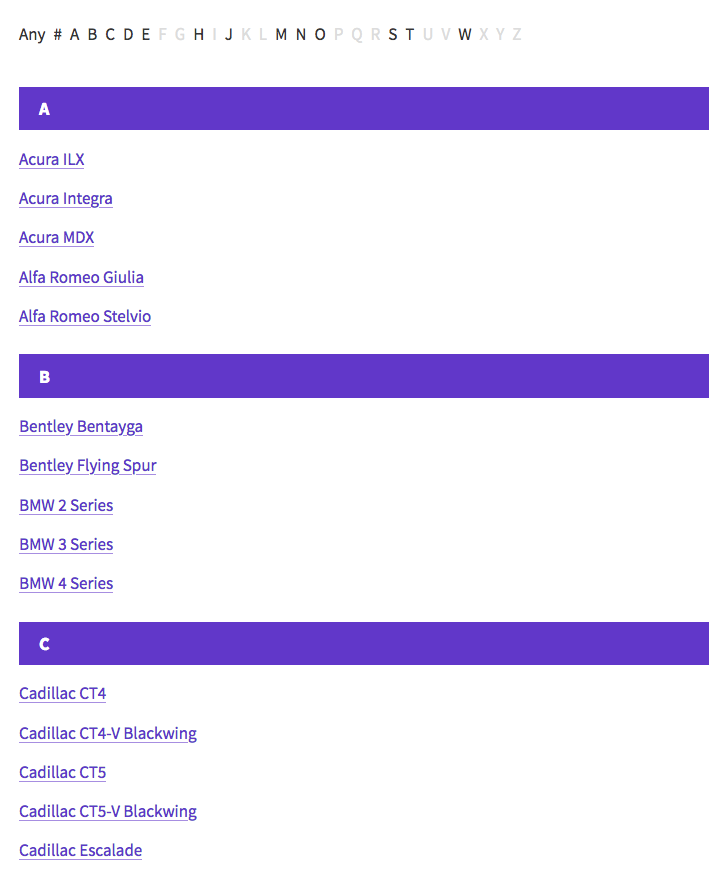
If you are filtering a listing by letter with the A-Z Listing facet, you may want to insert A-Z letter headings in the listing itself.
In the following example, we’ll use a Listing Builder listing in Dev mode to show how to do this, but you can apply the same setup in a custom WP_Query template.
First, go to the FacetWP settings and create a new Listing Builder listing. In the “Query” tab select your post type(s) and retrieve a high number of posts, or use -1 to get all of them. Click “Add query sort”, and set the query to order by Post Title -> ASC (meaning A-Z).
In the “Display” tab, click “Dev mode” and add the following loop code. This example will show post titles only, which you can adapt later.
How to use custom PHP code?
PHP code can be added to your (child) theme's functions.php file. Alternatively, you can use the Custom Hooks add-on, or a code snippets plugin. More info
<?php if ( have_posts() ) : $current_letter = ''; while ( have_posts() ): the_post(); // Add a letter heading for each letter in the alphabet. // We are using the post title here to determine the starting letter. // This means the query must be ordered by the post title too. // You can use any custom field here, for example: get_field('last_name'); // as long as you make sure the query is ordered by that field too. See this tutorial for how to order a query by a custom field: // https://facetwp.com/how-to-filter-or-order-a-wp_query-by-one-or-more-custom-fields/ $orderingby = get_the_title(); $first_letter = strtoupper( substr( $orderingby, 0, 1 ) ); if ( $first_letter !== $current_letter ) : echo '<div class="letter-heading">' . esc_html( $first_letter ) . '</div>'; $current_letter = $first_letter; endif; ?> <h3><a href="<?php the_permalink(); ?>"><?php the_title(); ?></a></h3> <?php endwhile; ?> <?php else : ?> <p><?php _e( 'Sorry, no posts matched your criteria.' ); ?></p> <?php endif; ?>
In line 14, we set the Post Title to get the first letter from. If needed, adapt this to the custom field that the query is ordering by. This would also be the same field that the A-Z facet is using as its data source. If it is a custom field made with Advanced Custom Fields, use the get_field() function as follows:
How to use custom PHP code?
PHP code can be added to your (child) theme's functions.php file. Alternatively, you can use the Custom Hooks add-on, or a code snippets plugin. More info
$orderingby = get_field('last_name'); // Get the 'last_name' ACF field
It’s important that the query itself is ordered by the same field as the above code uses to determine the first letter. See this tutorial to learn how to order a query by a custom field.
In lines 7-20, the above code inserts a <div> with class letter-heading containing the letter, which you can style as you like. You could adapt this to use an HTML <h2> heading or something else.
Next, add the following to your (child) theme’s functions.php (or to your theme CSS) to add some styling to the letter headings. This example lets them span the full width of the listing grid and adds a background color:
How to use custom PHP code?
PHP code can be added to your (child) theme's functions.php file. Alternatively, you can use the Custom Hooks add-on, or a code snippets plugin. More info
add_action( 'wp_head', function() { ?> <style> /* Styles for the full width letter heading */ .letter-heading { width: 100%; display: block; grid-column: 1 / -1; /* span all grid columns if the listing uses grid CSS */ margin: 15px 0; padding: 0 20px; font-size: 18px; font-weight: bold; line-height: 2.4em; color: #fff; background-color: #6233ca; } </style> <?php }, 100 );
Last but not least, let’s hide the letter headings when the A-Z facet is in use, in which case only posts starting with the same letter are displayed, and a letter heading would look weird.
Add the following to your (child) theme’s functions.php. Make sure to replace my_a_z_facet with the name of your A-Z facet in line 8:
How to use custom PHP code?
PHP code can be added to your (child) theme's functions.php file. Alternatively, you can use the Custom Hooks add-on, or a code snippets plugin. More info
// Add this to remove the letter headings when the A-Z facet is in use, // in which case only posts starting with the same letter are displayed. add_action( 'facetwp_scripts', function() { ?> <script> (function($) { document.addEventListener('facetwp-loaded', function() { let selected = FWP.facets['my_a_z_facet']; // Replace 'my_a_z_facet' with the name of your A-Z facet if ( selected.length ) { // If any choice in this facet is selected $('.letter-heading').addClass( 'facetwp-hidden' ); // Hide the letter heading } }); })(fUtil); </script> <?php }, 100 );
Changelog
1.4
- Aug 19, 2024
- New added `facetwp_alpha_chars` hook to set custom alphabet
- New added `facetwp_alpha_remove_accents` hook to remove accents
1.3.9
- Jul 12, 2022
- New added "Default label" UI setting, which is also now translatable
1.3.7
- Apr 4, 2022
- Improved clicking an already-selected letter will unselect it
1.3.6
- Jan 25, 2022
- Fixed Support new accessibility feature
1.3.5
- Oct 13, 2021
- Fixed Added class "selected" for consistency
1.3.4
- Aug 24, 2021
- Improved Removed jQuery dependency
1.3.3
- Apr 23, 2021
- Fixed cast characters as BINARY to avoid encoding issues
1.3.2
- Mar 18, 2020
- Changed renamed i18n namespace to "fwp-front" to align with FacetWP core
See also

A-Z Listing
Filter results by first letter
Download this add-on from your account page:
Download Add-OnAug 19, 2024