
How FacetWP works
This page gives a comprehensive overview of how FacetWP works.
Facets
Facets are UI elements used to filter a listing template that retrieves and displays post items.
Facets can filter listing templates with post items (or simply “posts”) of any (custom) post type, and users (with the User Post Type add-on). Facets cannot filter categories or terms, but they can filter posts by them.
Facets can filter posts by any post data, custom field, or built-in or custom taxonomies.
Facets are aware of each other and the content in the filtered listing, and will only display relevant choices.
FacetWP offers many different facet types, such as checkboxes, dropdowns, etc. Some facet types are built-in, others you have to install as add-on plugins.
Indexing
After adding some facets, you’re asked to click the Re-index button. Indexing is the process of storing facet data into a custom database table. This index table allows FacetWP to retrieve data very quickly.
FacetWP adds one database table: facetwp_index. This table contains all the information needed to generate the facets.
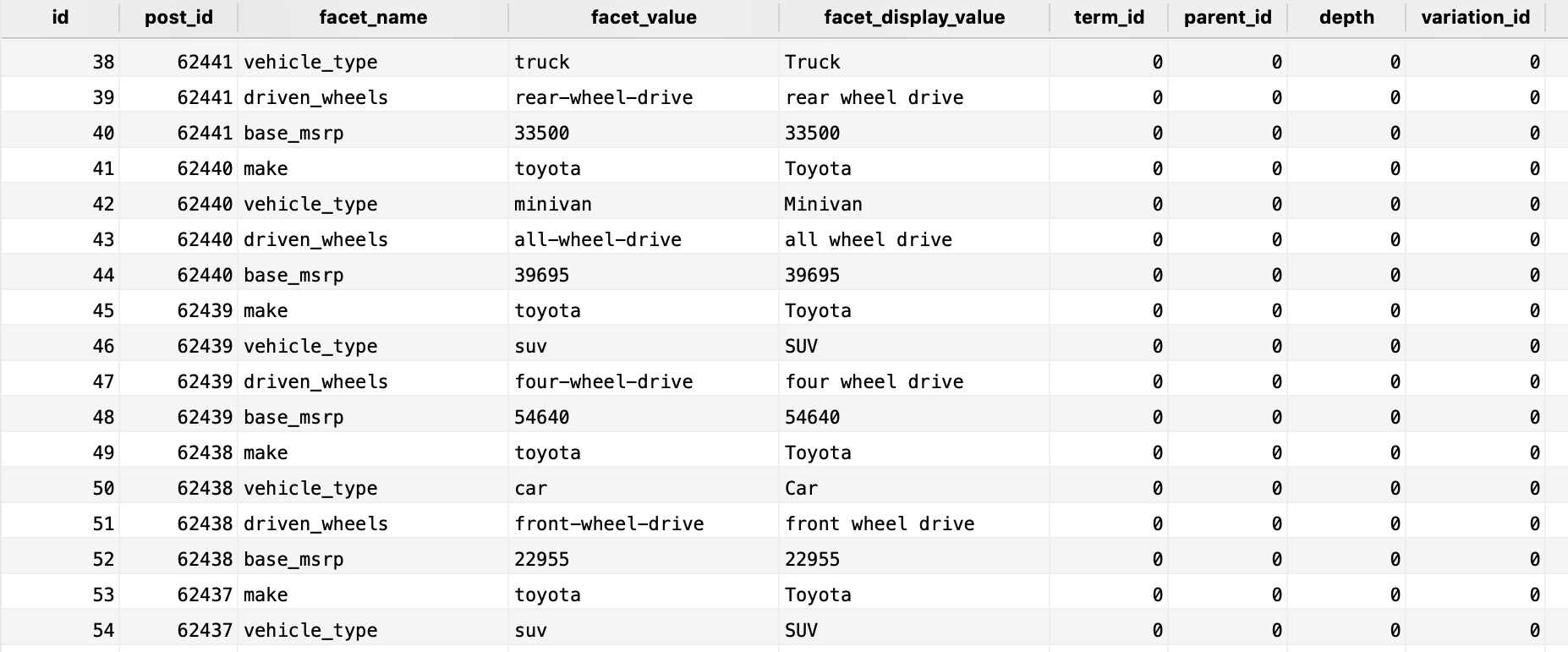
facetwp_index database table.How indexing works
When the Re-index button is clicked, FacetWP first retrieves all post IDs that should be indexed. It uses WP_Query, for which the query arguments are customizable with the facetwp_indexer_query_args hook.
FacetWP then loops through the array of post IDs. For each, it loops through all available facets and saves applicable values in the indexing table. Below is a pseudocode example:
How to use custom PHP code?
PHP code can be added to your (child) theme's functions.php file. Alternatively, you can use the Custom Hooks add-on, or a code snippets plugin. More info
foreach ( $post_ids as $post_id ) { foreach ( $facets as $facet ) { index_values( $post_id, $facet ); } }
The values in the facet_value column are the internal technical value of each facet choice. These values are visible to the user in the query variables of the URL when the choice is selected.
The values in the facet_display_value column are the facet choice labels that are visible in the facet itself, in the front-end.
The indexed values for each database row can be modified using the facetwp_index_row hook, one of the most powerful and most used hooks in FacetWP.
The output of the facet_display_value labels can be further customized with the facetwp_facet_display_value hook.
Automatic indexing
FacetWP has an automatic indexer that performs a single re-index when an individual item (a post, page, and category or term name/slug) is edited or saved. This keeps the index up to date automatically without having to worry about it, and without putting the potentially heavy burden of a full re-index on your site. This means you don’t have to re-index after adding or editing/saving posts or terms, with a few exceptions.
Listing templates
Facets can filter a wide variety of listing templates, including FacetWP’s own Listing Builder listing templates.
The Listing Builder is a very powerful and convenient alternative to using a custom WP_Query or other template type, especially if used in Dev mode.
For any facet to show up and work, there needs to be a FacetWP-enabled listing on the page. Without a valid listing template, facets will not show up.
Also keep in mind that there can only be one FacetWP-enabled listing per page.
Shortcodes
FacetWP uses shortcodes to let you control where on the page to display your facets and Listing Builder listing templates.
When you use a shortcode for a facet or Listing Builder listing, it creates an empty placeholder element that gets populated via JavaScript after pageload. Below is an example of what a facet shortcode outputs before that happens:
<div class="facetwp-facet facetwp-facet-make facetwp-type-checkboxes" data-name="make" data-type="checkboxes"></div>
Interaction / AJAX
When the page loads, FacetWP uses JavaScript to scan for facet elements, as well as the facetwp-template CSS class, which is (or should be) added to the listing container, depending on the listing template type used.
To see lots of useful data involved in this process, type FWP into your browser console. Specifically, if you type FWP.facets, you’ll see an object containing all active facets and their selected values:
How to use custom JavaScript code?
JavaScript code can be placed in your (child) theme's main JavaScript file. Alternatively, you can add it manually between
<script>tags in the<head>section of your (child) theme's header.php file. You can also load it with a hook in your (child) theme's functions.php file, or in the Custom Hooks add-on. To load the code only on pages with facets, use thefacetwp_scriptshook. To load it on all pages, usewp_headorwp_footer. Or you can use a code snippets plugin. More infoFWP.facets
This data is sent to the server via AJAX, and the response is a JSON object containing HTML for the listing template and HTML for each facet, among other things.
Remember those empty HTML placeholder elements mentioned before? FacetWP simply injects the response HTML into the appropriate container elements.
Debugging
To debug, or to see more of information that FacetWP uses, enable Debug Mode, then type FWP.settings.debug into your browser console:
How to use custom JavaScript code?
JavaScript code can be placed in your (child) theme's main JavaScript file. Alternatively, you can add it manually between
<script>tags in the<head>section of your (child) theme's header.php file. You can also load it with a hook in your (child) theme's functions.php file, or in the Custom Hooks add-on. To load the code only on pages with facets, use thefacetwp_scriptshook. To load it on all pages, usewp_headorwp_footer. Or you can use a code snippets plugin. More infoFWP.settings.debug
See this section of our Troubleshooting guide for more information about using Debug Mode in the browser console.